Stock Age
This document explains the Stock Age feature in the Jova POS system, which is used to manage stock age information for items in the warehouse. This feature allows you to monitor the age of inventory items based on available data, as well as filter and export related stock data.
Stock Age Feature Flow
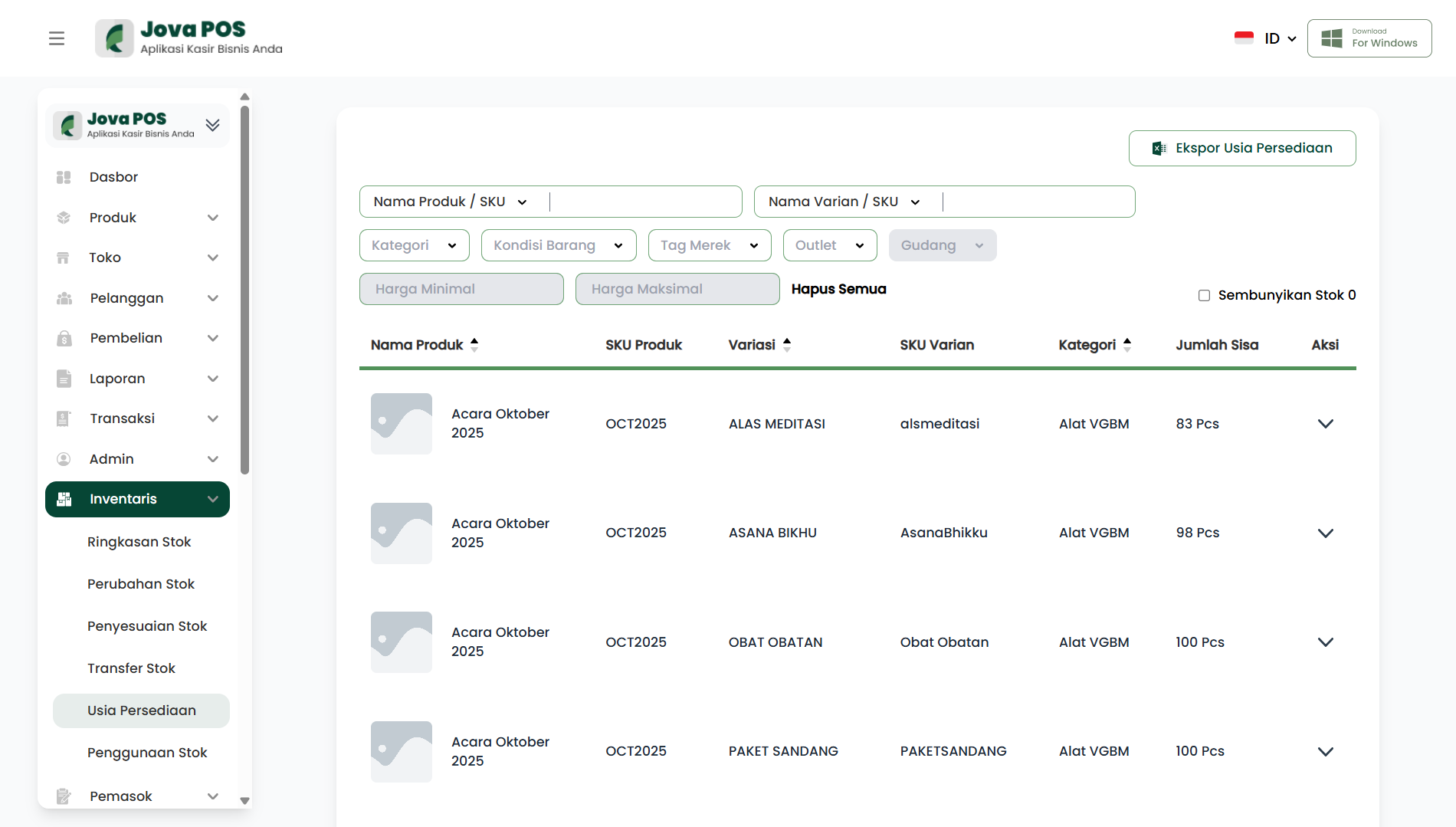
- Access the Inventory → Stock Age menu.
- Stock age data will be displayed in the table.
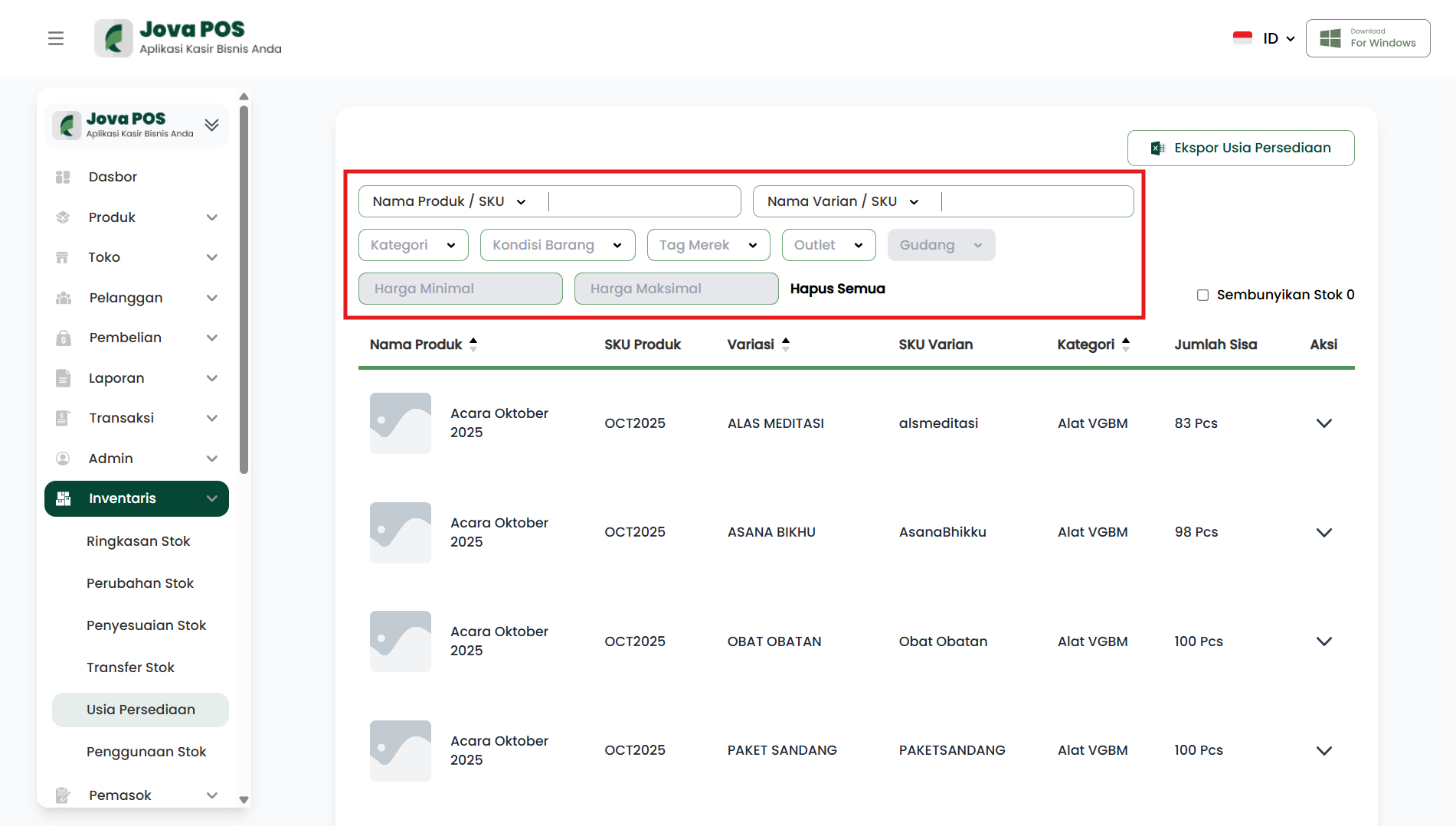
- Filter data by Product Name, Category, Warehouse, and others.
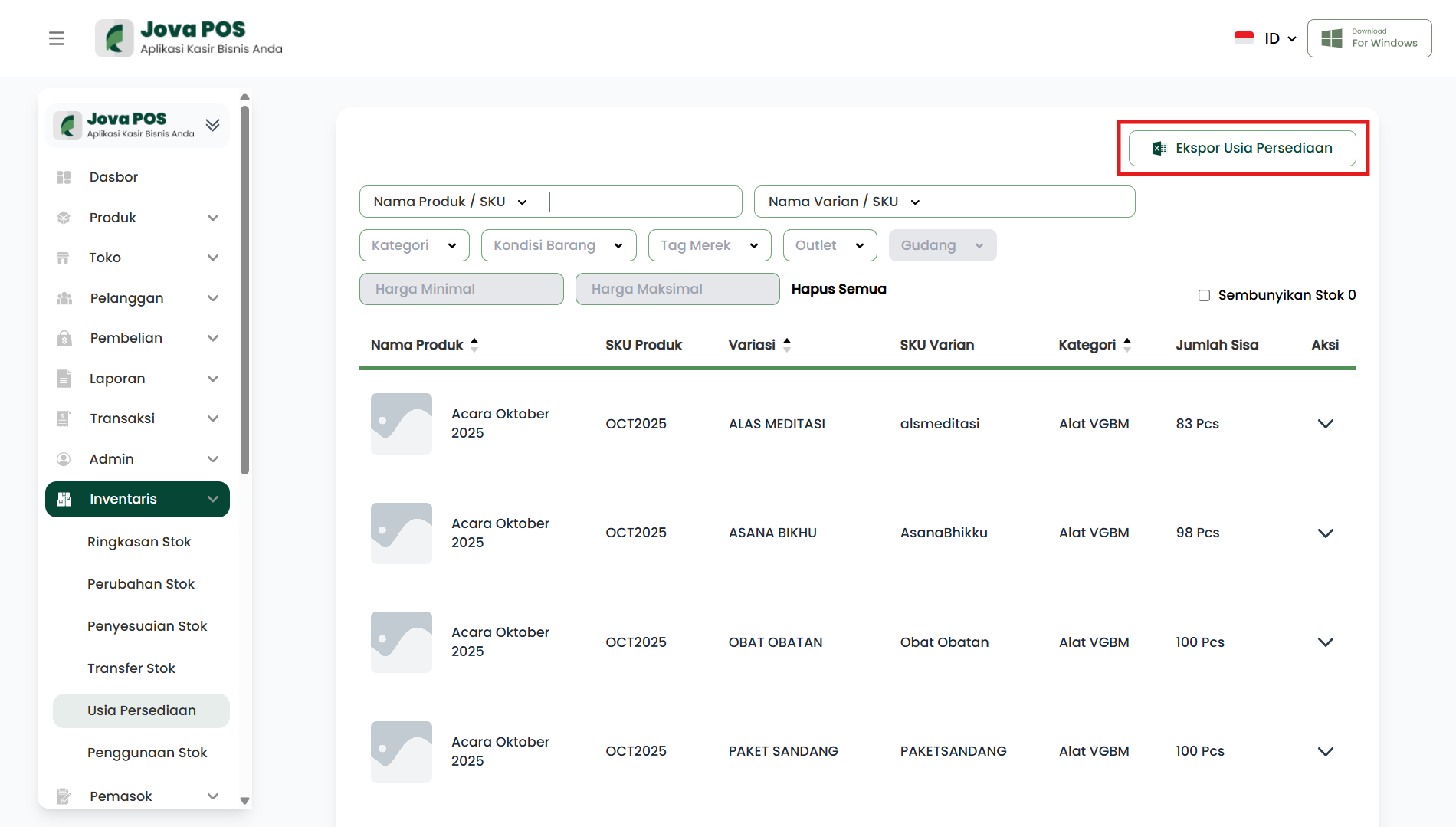
- Click the Export button to export stock age data in the desired format.
1. Accessing the Stock Age Menu
- In the sidebar, click Inventory.
- Select Stock Age.
2. Stock Age List Display
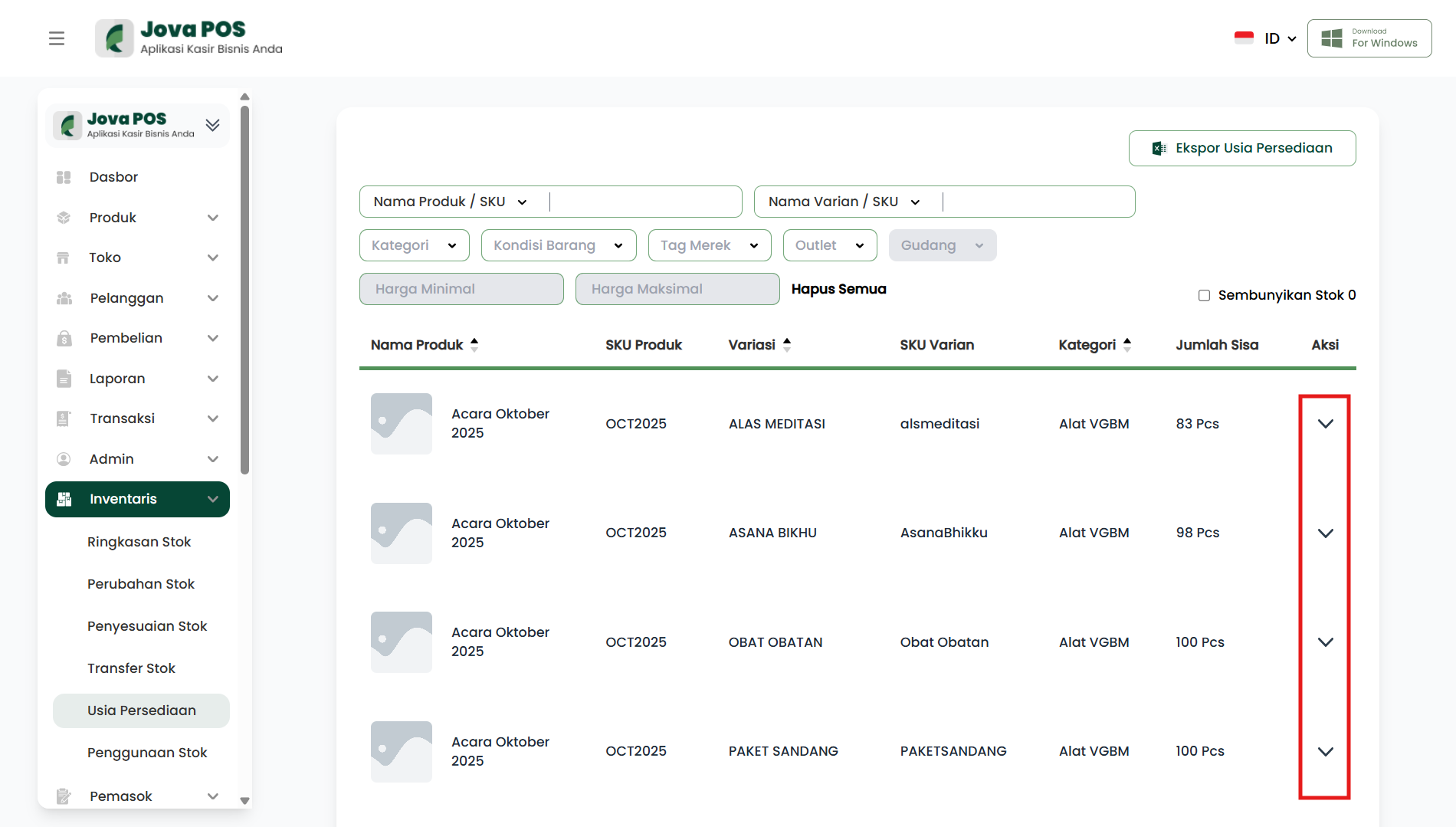
After accessing the Stock Age menu, you will see a list of items along with their stock age information. The table will display data such as:
- Product Name
- Product SKU
- Warehouse
- Stock Quantity
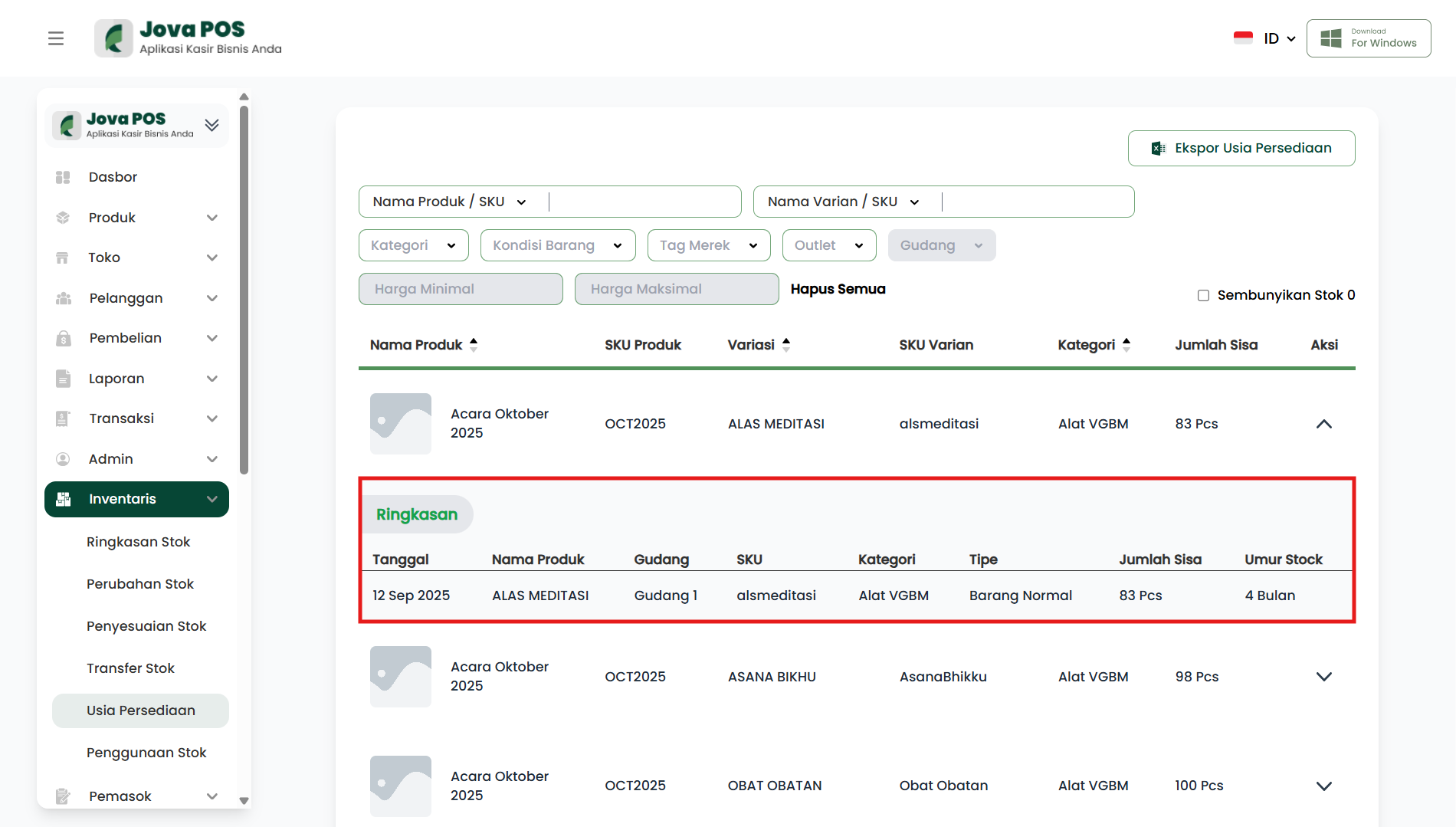
- Stock Age (in months)
Search Filters
- Product Name/SKU: Search by product name or SKU.
- Category: Select the relevant item category.
- Warehouse: Select the warehouse where the items are located.
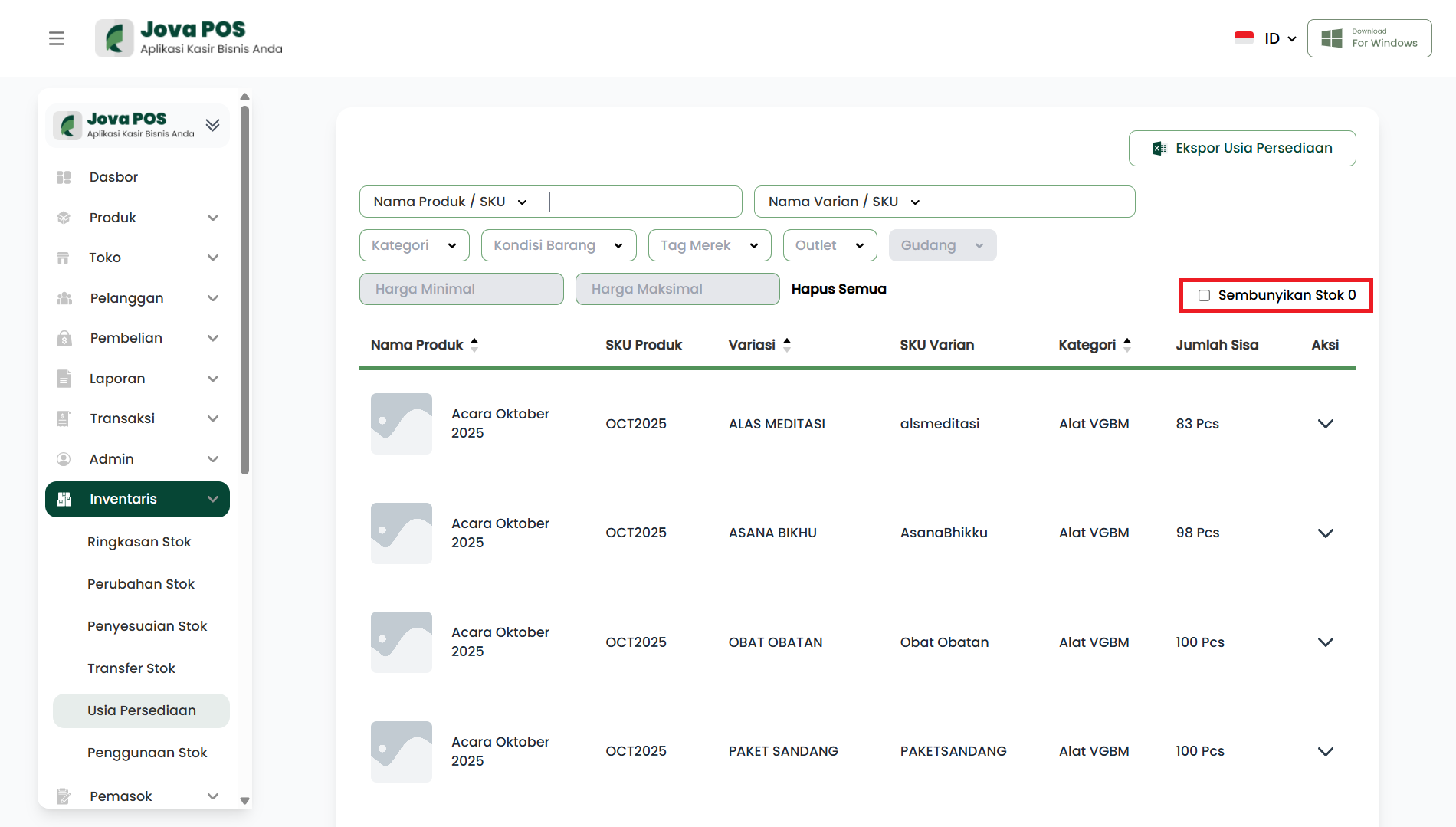
- Hide Zero Stock: Select to hide items with zero stock.
3. Showing and Hiding Zero Stock
On the Stock Age page, you can choose to hide stock that is depleted or unavailable by checking the Hide Zero Stock option.
4. Exporting Stock Age Data
If you want to export stock age data, click the Export Stock Age button located on the top right of the page. The data will be exported in a format suitable for further analysis.
5. Actions on Product List
In the Action column, you can click the arrow icon to view more detailed information about a specific product. You can check further stock details or edit product data.
Conclusion
The Stock Age feature in Jova POS is very useful for monitoring the age of stock items in the warehouse, assisting in purchase planning, and ensuring that slow-moving items can be processed for sale or removal promptly.